How to Fix Buffering on Streaming Apps (Android TV, FireStick & Mobile)
Buffering is one of the most frustrating problems when watching movies or live TV online. Everything works fine for a few minutes, and suddenly the video stops loading or keeps spinning endlessly.
Most people immediately blame the streaming app, but in many cases the problem is actually related to internet stability, device performance, or playback settings.
The good news is that buffering problems can usually be improved with a few simple adjustments.
After testing streaming apps on Android phones, Android TV, and FireStick devices, here are the most effective ways to reduce buffering and improve playback performance.
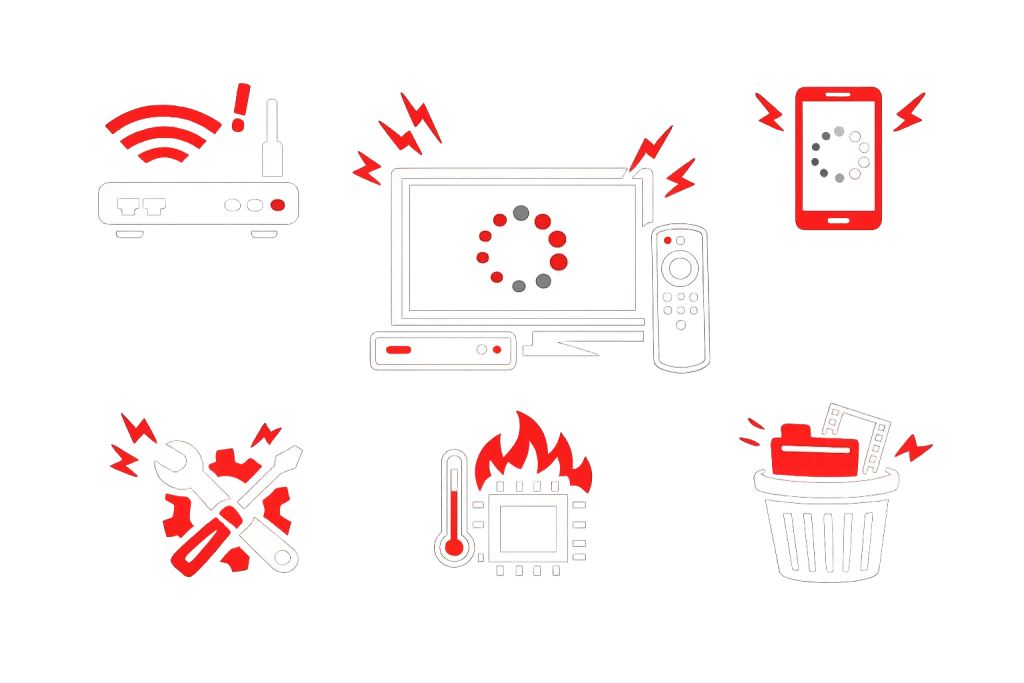
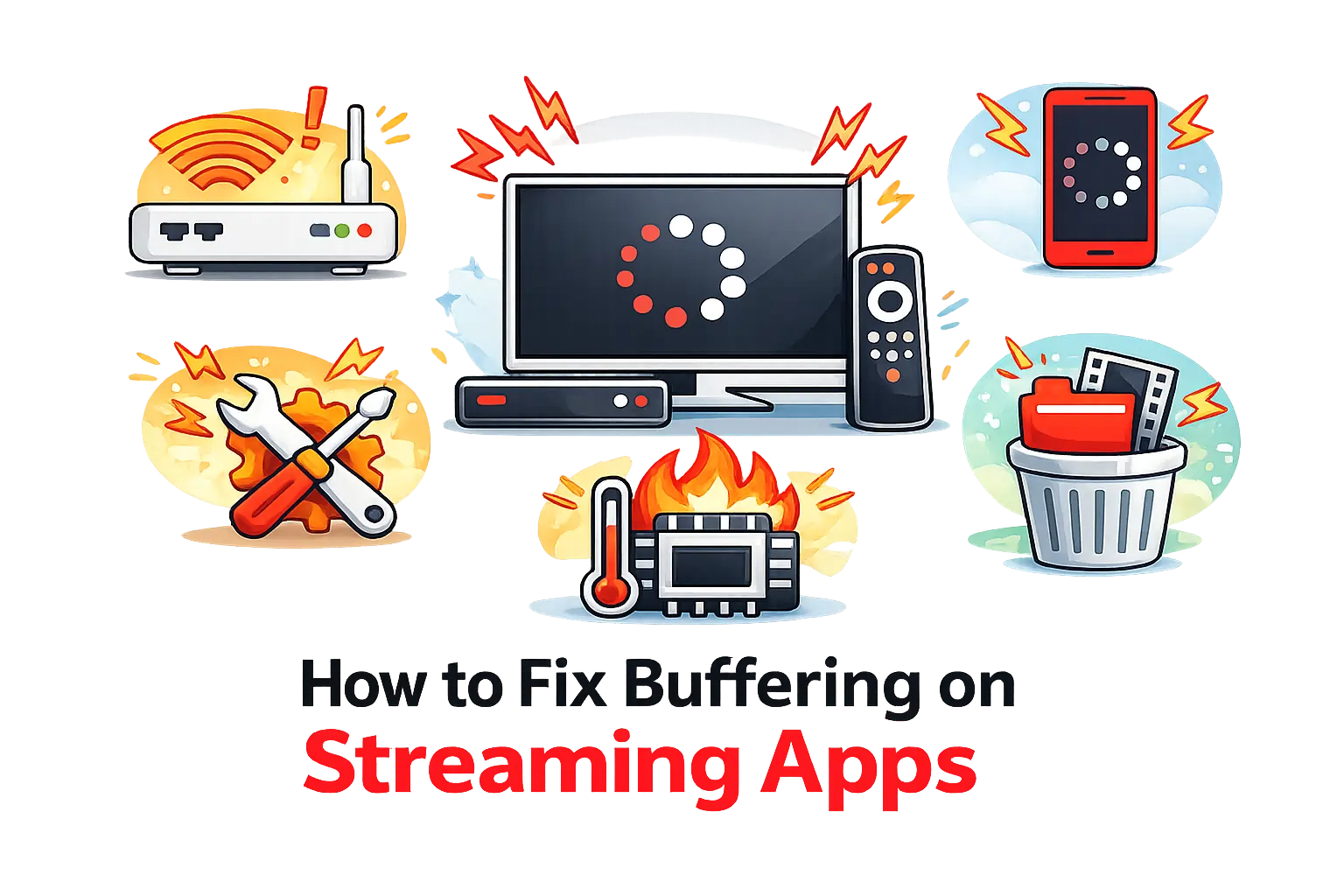
Why Streaming Apps Buffer
Buffering happens when the video player cannot download data fast enough to continue playback smoothly.
This can happen because of:
- slow internet speed
- unstable WiFi
- overloaded device memory
- poor-quality streaming links
- background applications
Sometimes even powerful devices experience buffering during high-traffic streaming hours.
Restart the Device First
Before changing advanced settings, restart the device completely.
This clears temporary memory usage and closes background processes that may affect streaming performance.
On Android TV or FireStick devices, restarting often improves playback immediately.
Lower Video Quality
Many users automatically choose Full HD or higher resolutions, but older devices may struggle with high-bitrate playback.
If buffering continues:
- switch from 1080p to 720p
- avoid ultra-high-quality streams on slower WiFi
In many cases, slightly lower quality creates a much smoother experience overall.
Improve WiFi Stability
Internet stability matters more than raw speed.
A connection with unstable signal strength often buffers more than a slower but stable network.
A few simple improvements:
- move closer to the router
- restart the router
- avoid too many connected devices
- use 5GHz WiFi if available
For Android TV devices, Ethernet connections usually provide the most stable playback.
Close Background Apps
Phones and streaming devices with limited RAM can struggle if too many apps remain active.
Background apps consume:
- RAM
- internet bandwidth
- processor resources
Closing unused applications before streaming can improve responsiveness significantly.
Use Lightweight Streaming Apps
Some streaming apps are simply too heavy for low-end devices.
Apps with:
- excessive animations
- overloaded homepages
- too many advertisements
often perform worse on older phones and Android TV systems.
Many users prefer lightweight apps because playback starts faster and navigation feels smoother during longer viewing sessions.
Clear App Cache
Streaming apps store temporary files over time. Eventually this can slow down loading speed or create playback glitches.
On Android:
- Open Settings
- Go to Apps
- Select the streaming app
- Tap Clear Cache
This often fixes loading issues without reinstalling the app.
Buffering on FireStick
FireStick devices are popular for streaming, but older models may struggle when storage becomes full.
To improve performance:
- remove unused apps
- restart the device regularly
- avoid low-quality power adapters
- clear cache frequently
Many buffering complaints on FireStick are related to storage and overheating rather than internet speed.
Why Some Streaming Apps Feel Faster
Not all streaming apps handle playback the same way.
Some apps are optimized for:
- lower RAM usage
- faster loading
- simpler navigation
while others focus heavily on extra features that slow performance.
Users with budget Android phones or entry-level TV devices usually notice the difference quickly.
Frequently Asked Questions
Final Thoughts
Buffering problems are common, but they are often fixable without replacing the device or internet connection.
In most situations, smoother streaming comes down to:
- stable WiFi
- lighter apps
- lower playback quality
- fewer background processes
A few small adjustments can make streaming significantly more stable on Android phones, Android TV systems, and FireStick devices.